
An AI SEO agent can take a clearly defined, repeatable search task off your plate and run it on demand, freeing up time for the editorial and strategic work that still needs a human in the loop. Built well, it accepts a seed keyword, pulls verified data, clusters the results, and produces a finished content brief you can hand to a writer. The full setup is approachable, and once it is built, you can call the workflow again whenever you need it.
What Is an AI SEO Agent?
An AI SEO agent is a fully or partly automated workflow built into an AI tool to carry out a specific SEO process. Agents do not need to be fully autonomous. In fact, results tend to be better and more consistent when a human approval step is built in. A common pattern is letting the agent do the research and the drafting, then having a person apply the final changes to the site. Even when the setup is solid, AI agents can still hallucinate and make mistakes, so the cost of any error should guide how much autonomy you give the workflow.
What Tasks Are a Good Fit for an SEO Agent?
Agents work best for tasks that are repeatable, well defined, and easy to measure. Common fits include keyword research, competitor analysis, link-building outreach, keyword clustering, content decay detection, content refresh planning, technical audits, internal linking at scale, and performance reporting.
Most of these tasks need access to external data. That is usually done by connecting an AI tool to a platform like Semrush through an API or a Model Context Protocol (MCP) connection. MCP is a way for AI tools to communicate with data providers, and Semrush SEO and SEO + AI subscriptions include 50K MCP API units per month. Connecting the Semrush MCP gives an agent access to keyword and backlink data sources for the workflow.
When Is an Agent the Wrong Tool?
Agents are usually the wrong fit for one-off tasks, where a single prompt in an AI tool is cheaper, easier, and faster. They are also a poor fit for anything that needs editorial judgment or brand risk assessment, because the oversight required makes the agent less cost-effective to set up. Workflows that change every time they run are also a bad match, since constantly rewriting the instructions erodes the value of building the agent in the first place.
How to Build an AI SEO Agent
The walkthrough below builds an agent that performs keyword research, creates topic clusters, and generates content briefs. Each step can be adapted to other use cases.
Step 1: Choose one clearly defined workflow
Pick one repeatable SEO task with clear inputs, clear outputs, and easy-to-validate success metrics. For a first build, avoid complex workflows, since too many potential points of failure can burn through API units on trial and error. For this guide, the chosen workflow is a content-brief-creation agent that clusters keyword ideas and produces a content brief. It works by taking a seed keyword as input, checking it against existing Google Search Console data to spot optimization opportunities on existing pages, running keyword research through the Semrush MCP and grouping the results into topic clusters, then creating a content brief for a chosen topic based on SERP analysis and Semrush data. Success is measured by the quality of the content briefs it produces.
Step 2: Document the existing human process
Write down the process a skilled SEO professional would follow for the task, including data sources, rules or filters, and any exceptions. This documented process becomes the agent’s operating instructions in a later step. For the content-brief agent, the document covers the keyword research steps, the clustering rules, and the brief structure to be produced.
Step 3: Choose your inputs and outputs
Define clear user inputs and agent outputs for each stage. For the content-brief agent, there are three stages:
- Stage 1 (one-time setup): the user provides a business context file, GSC data, and a list of existing URLs. The agent outputs a CSV with clustered queries from GSC for use in future runs.
- Stage 2 (keyword research): the user provides a seed keyword or topic. The agent outputs a CSV of topics clustered around that input.
- Stage 3 (content brief): the user picks a topic from the stage 2 CSV. The agent outputs a content brief for the chosen topic.
Specifying file types up front keeps results consistent. The content brief is set as a .docx file, though Markdown, PDF, or Google Docs are also options if the agent is connected to Google Drive.
Step 4: Connect verified data sources
Connect verified data so the agent works from reliable sources of truth. Good options include the Semrush API or MCP, Google Search Console, Google Analytics, the content management system, and any manually created sources like lists of target URLs or keywords. Always confirm permission to connect each data source before adding it, since AI tools may use inputs for training.
For the content-brief agent, the Semrush MCP is connected to enable keyword research through Semrush’s keyword database. In Claude, this is done by clicking the plus icon on any chat window, then Connectors, Add connector, Browse connectors, searching for Semrush, and clicking the plus button to connect it via MCP. Then follow the sign-in workflow to finish. CSVs of Google Search Console data are uploaded manually, a quick step that only needs doing at the start and monthly to keep the data current. A list of URLs is also uploaded so the agent can suggest internal linking ideas in the brief.
Step 5: Turn your human process document into agent instructions
Paste the human process document into the AI tool and ask it to turn the document into a set of instructions the tool can use. Providing the documented process along with a summary of expected inputs and outputs works well. Clarifying which tools the agent should use and when helps cut down on token and API unit use. After uploading, ask the tool if it understands everything and if anything else is needed to perform the workflow. Expect some back and forth, and consider testing different models. The output becomes a finalized set of instructions uploaded as a skill file in the next step. The agent can also be connected to communication or project management tools like Monday.com or Slack so it can deliver reports or create tasks automatically. High-impact tasks like publishing, redirects, or code deployments should stay behind human approval.
Step 6: Add your skill to the AI platform
Add the instructions to the AI platform as a skill file so the workflow becomes a repeatable, callable process inside the platform. In Claude, click Customize in the left-hand sidebar, then Add, then Create a skill. Give the skill a name using only lowercase letters, numbers, and hyphens, add a description, paste the agent instructions into the free text box, and click Create.
Step 7: Add relevant files to the skill
Add a business context file so the agent understands what the business does and who the audience is, which leads to better-tailored output. Useful information to include:
- What the business sells, including product or service features
- Primary and secondary audiences
- Main competitors
- Important pages on the website, such as best-selling products or highest-traffic posts
- Any rules or filters for the AI to take into account
For the content-brief agent, business context shapes the keywords the agent prioritizes, including keywords tied to upcoming product launches. In Claude, click Add file inside the skill editor, name the file, press enter, paste in the business context, then click Create.
Step 8: Test and tweak your agentic workflow
Test with dummy data sources and monitor the agent’s output. For the content-brief agent, a CSV of GSC data and a list of existing URLs were uploaded, then a prompt called out the content brief skill and specified a seed keyword. Pay attention to the reasoning and evidence the AI gives for its decisions, since that surfaces issues and explains why they happened. Requiring evidence in the live workflow helps too, for example, asking the agent to provide sources for every keyword it suggests so a human reviewer can trace the reasoning. Running multiple tests with different seed keywords confirms the output is reliable for different kinds of content briefs, like listicles and comprehensive guides. During testing, the agent produced the topic cluster CSV, generated a content brief for a chosen topic, suggested internal linking opportunities based on the uploaded URL list, and added a note to the writer about mentioning upcoming products based on the business context file.
Step 9: Deploy, monitor, and improve
After multiple successful tests, the agent is ready to use or share with the wider team. Recording a walkthrough, such as a short video or a Google Doc with screenshots, helps other stakeholders approve the process or other team members use it. The agent can be adapted over time based on issues that come up in use. To update it, navigate to the skill file, click the three-dot menu, select Edit, make the changes, and rerun the testing step. Be careful about who has access and how many people are using the agent, since many users running the agent across a range of models can quickly spend both Claude tokens and Semrush API units.
FAQ
What is an AI SEO agent?
An AI SEO agent is a fully or partly automatic workflow built into an AI tool to carry out a specific SEO process. It works best when given a clearly defined, repeatable task with a human approval step built in.
What tasks can an AI SEO agent automate?
Agents can automate keyword research, competitor analysis, link-building outreach, keyword clustering, content decay detection, content refresh planning, technical audits, internal linking at scale, and performance reporting, especially when connected to external data sources like Semrush through an API or MCP connection.
How do you connect Semrush to an AI agent?
Semrush can be connected through its API or through a Model Context Protocol (MCP) connection, which lets AI tools communicate with Semrush’s keyword and backlink databases. In Claude, this is done by clicking the plus icon, then Connectors, Add connector, Browse connectors, searching for Semrush, and clicking the plus button to add it via MCP, then completing the sign-in workflow.
Related coverage
SEOScanPro
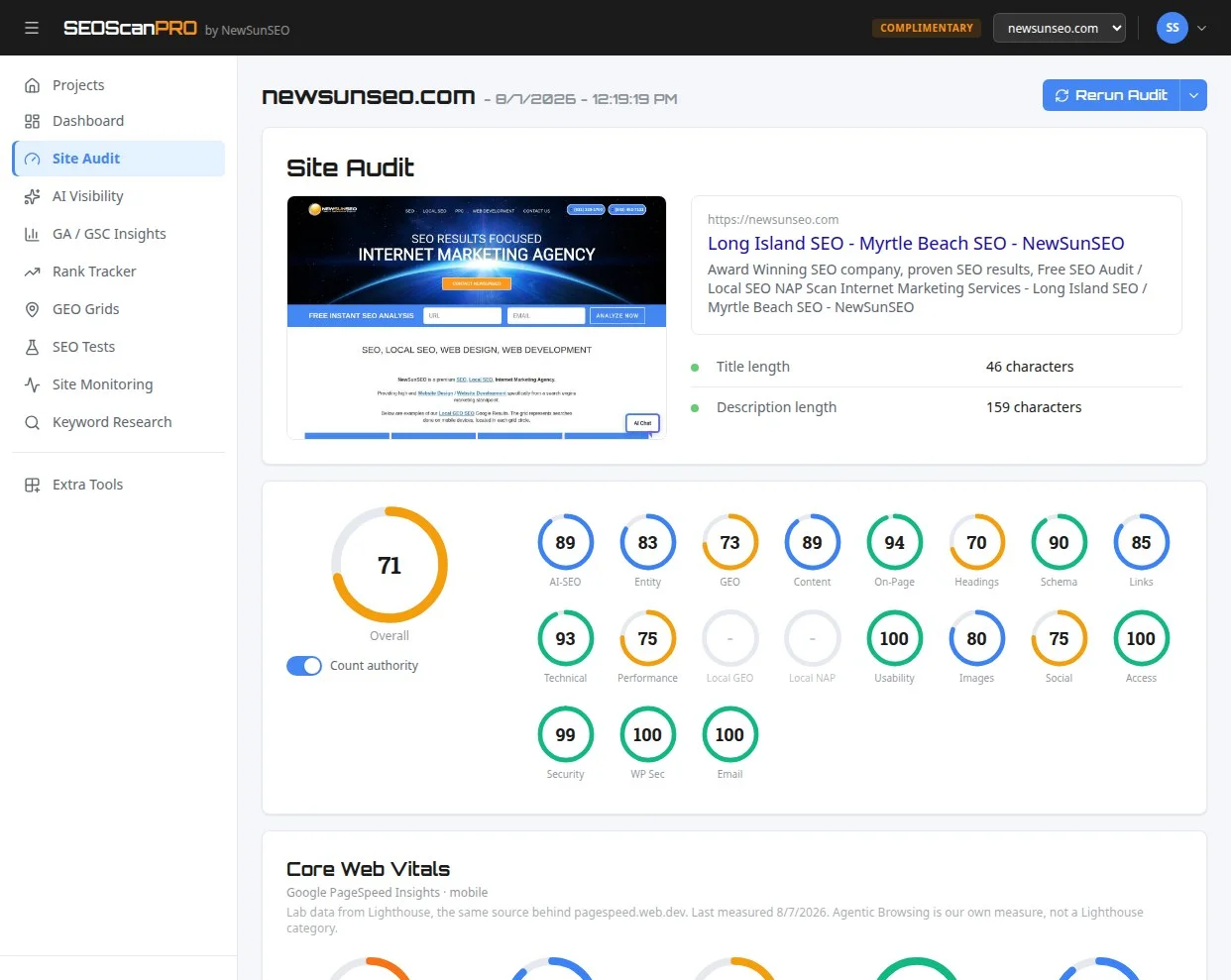
SEOScanPro’s site audit tool runs a full technical audit of a site and shows the measured result behind every check. Open the site audit tool.
This article summarizes reporting from semrush.com. See our editorial disclaimer for how our articles are produced.
Run a free scan to see your AI Visibility Score, SEO rating, and local citation accuracy.